05 · Join the meeting · 3 min
Connect to Zoom
Pair the event, then choose when the meeting sees its timer.
Copy the event’s Zoom code
Expand Zoom code in the control room and select its copy icon. If no code is present, select Create Zoom code first. Wait for the event’s cloud save to finish so the Zoom app can find it.
Connected is only the first step.
Your control room
Zoom code · example only
DEMO-CODE
Timer inside Zoom
MEETING PREVIEW
No timer is shared. Connect the sample event first.
This example does not contact Zoom. The preview illustrates visibility; it is not a screenshot of the Zoom client.
Find it on the screen.
Actual interface · unedited captures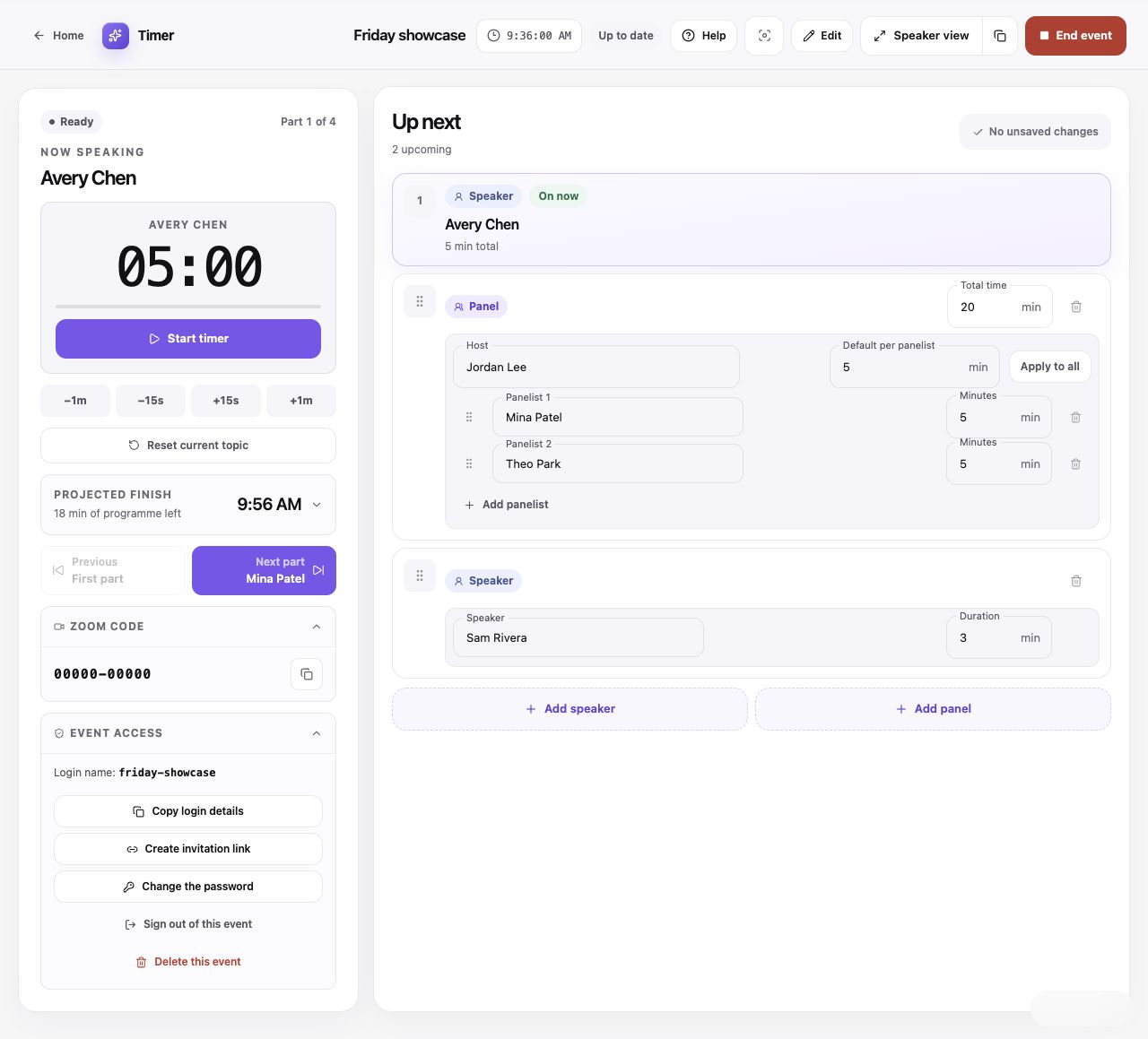
Actual sharing controls with sample data. The all-zero Zoom code is a local example, not a code to use.
Speaker view: Open the anonymous read-only display; the adjacent copy icon copies its link.
Read the whole lesson
Copy the event’s Zoom code
Expand Zoom code in the control room and select its copy icon. If no code is present, select Create Zoom code first. Wait for the event’s cloud save to finish so the Zoom app can find it.
Open Timer inside Zoom
The operator needs the Timer Zoom App installed or made available by their Zoom administrator. Join a meeting and open Timer from Zoom Apps. Opening /zoom in an ordinary browser does not publish to a meeting.
Connect the event
Paste the code into Zoom code and select Connect. Confirm the event name. At this point the app is connected, but nothing is shared with the meeting.
Publish the countdown
Select Sync to Zoom. The indicator appears when the timer is running and follows timing changes from the control room. Participants can see the indicator without installing Timer themselves.
Stop sharing or troubleshoot
Select Stop sharing timer to remove the indicator, or Cancel sharing while waiting for the timer to start. If pairing fails, check the code and cloud connection. If publishing is unavailable, join a meeting in a supported Zoom client and re-check the app’s environment information.