02 · Prepare · 4 min
Build the agenda
Arrange speakers, panelists, durations, and the order of the show.
Add a speaker
In the agenda editor, select Add speaker and enter the speaker’s name and duration. A single speaker’s duration is also that agenda item’s duration.
Build it. Then run it.
Use the actual agenda editor with sample data. Changes stay in the practice tab.
Find it on the screen.
Actual interface · unedited captures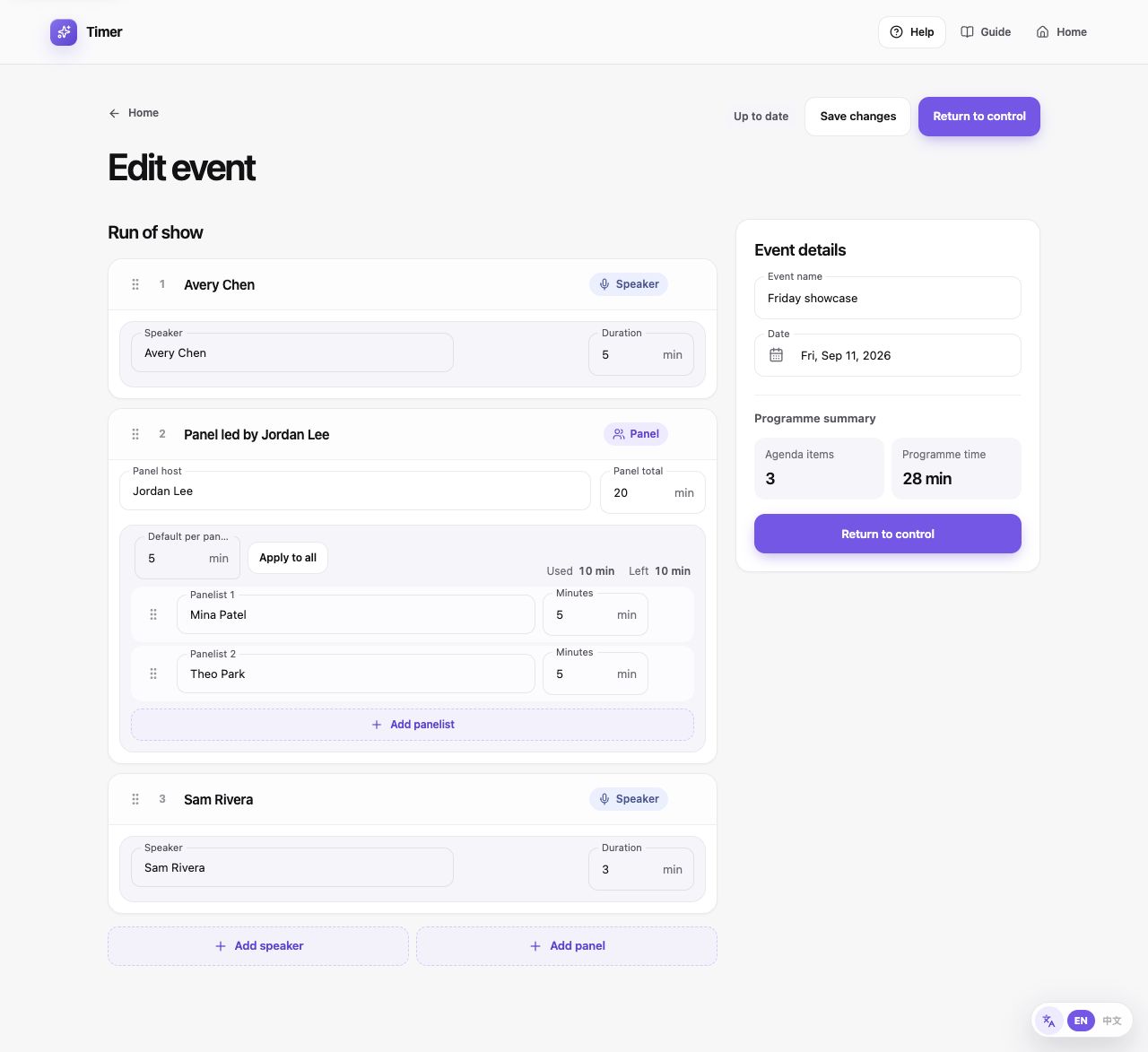
Actual event editor with sample event data. The layout and controls are unchanged.
Save changes: Save the edited event details and agenda.
Read the whole lesson
Add a speaker
In the agenda editor, select Add speaker and enter the speaker’s name and duration. A single speaker’s duration is also that agenda item’s duration.
Add a panel
Select Add panel. Set its overall duration, host, default panelist duration, and individual panelists. The panel’s overall clock and each speaker’s clock are separate.
Arrange the programme
Drag a reorder handle to move an agenda item or panelist. In the builder, keyboard users can focus a handle, press Space, use arrow keys, then press Space to drop. Remove deletes the selected row from your draft.
Save and open control
Select Save changes to keep your edits. Start event, or Return to control for a live event, saves the editor changes and opens the control room.
Edit during the show
The control room lets you edit upcoming items. Select Save Changes to apply the draft, or Undo Changes to discard it. Resolve the draft before moving to another part. A conflict notice asks which version to keep if another controller has changed the event.