01 · Get started · 3 min
Create an event
Start from scratch or bring a whole programme in from CSV.
Start from the home screen
Choose Create an event, then New event. No personal account is needed: each event has its own access.
Build it. Then run it.
Use the actual agenda editor with sample data. Changes stay in the practice tab.
Find it on the screen.
Actual interface · unedited captures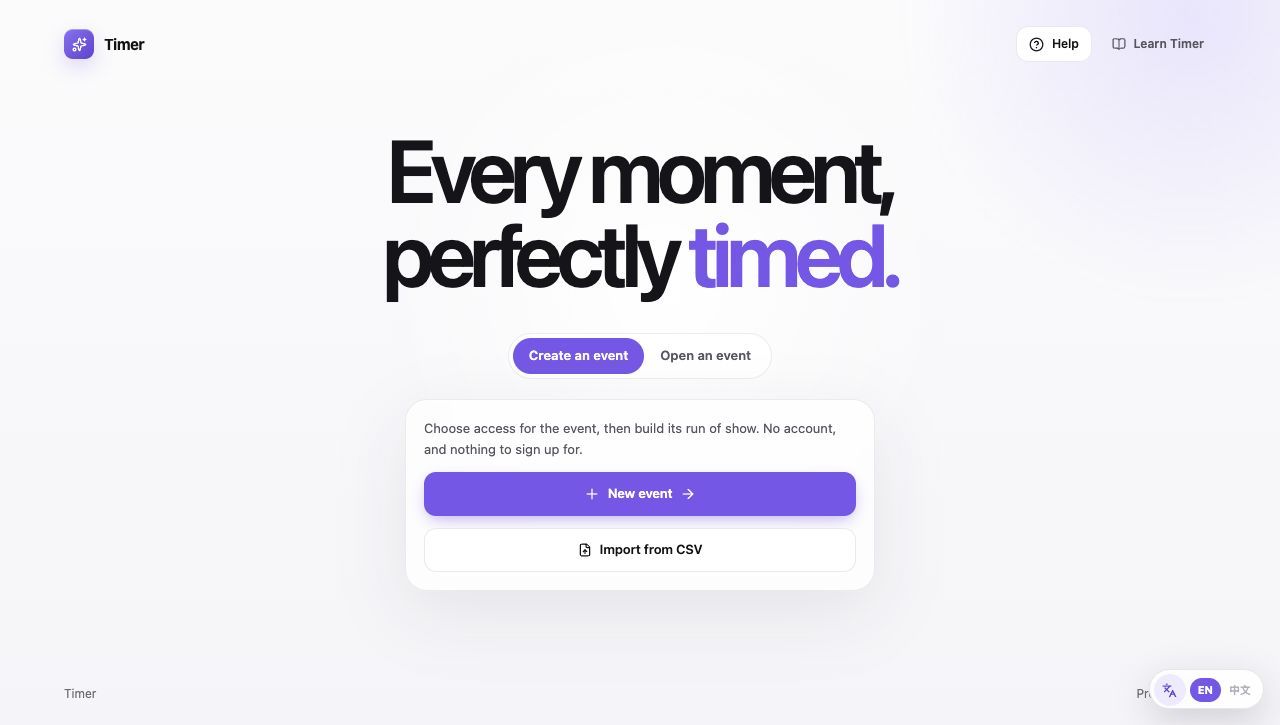
Actual Timer home screen. Choose New event or Import from CSV.
Create an event: Select the creation tab to see both ways to create an event.
Read the whole lesson
Start from the home screen
Choose Create an event, then New event. No personal account is needed: each event has its own access.
Choose event access
Enter a unique lowercase login name and a password of at least six characters. Select Create event. After the event is created, its agenda editor opens.
Add the details and agenda
Give the event its display name and date. Add speakers or panels, set their durations, then select Save changes. Start event opens the control room; Start timer begins the countdown.
Or import from CSV
On the home screen, choose Import from CSV and download the template. Use one row per speaker. Rows with the same event_name form one event; item_order groups panelists into one agenda item. Preview the file, then set a distinct login name for each event and a shared password for the import.
Return on another device
Choose Open an event and enter its login name and password, or follow a controller invitation. On this device lists events this browser remembers; it is not a directory of all events.