04 · Bring people in · 3 min
Share the right access
Choose a speaker display or give a colleague control.
For a speaker or display
In the control-room header, Speaker view opens the read-only display in a new tab. The copy icon beside it copies the speaker link. Anyone with this link can watch the timer without a password, but cannot control the event.
Who needs access?
Control-room header → copy icon beside Speaker view
A read-only countdown
Select the action to see what access the recipient would receive.
Simulation only. No link, invitation, or credentials are created or copied.
Find it on the screen.
Actual interface · unedited captures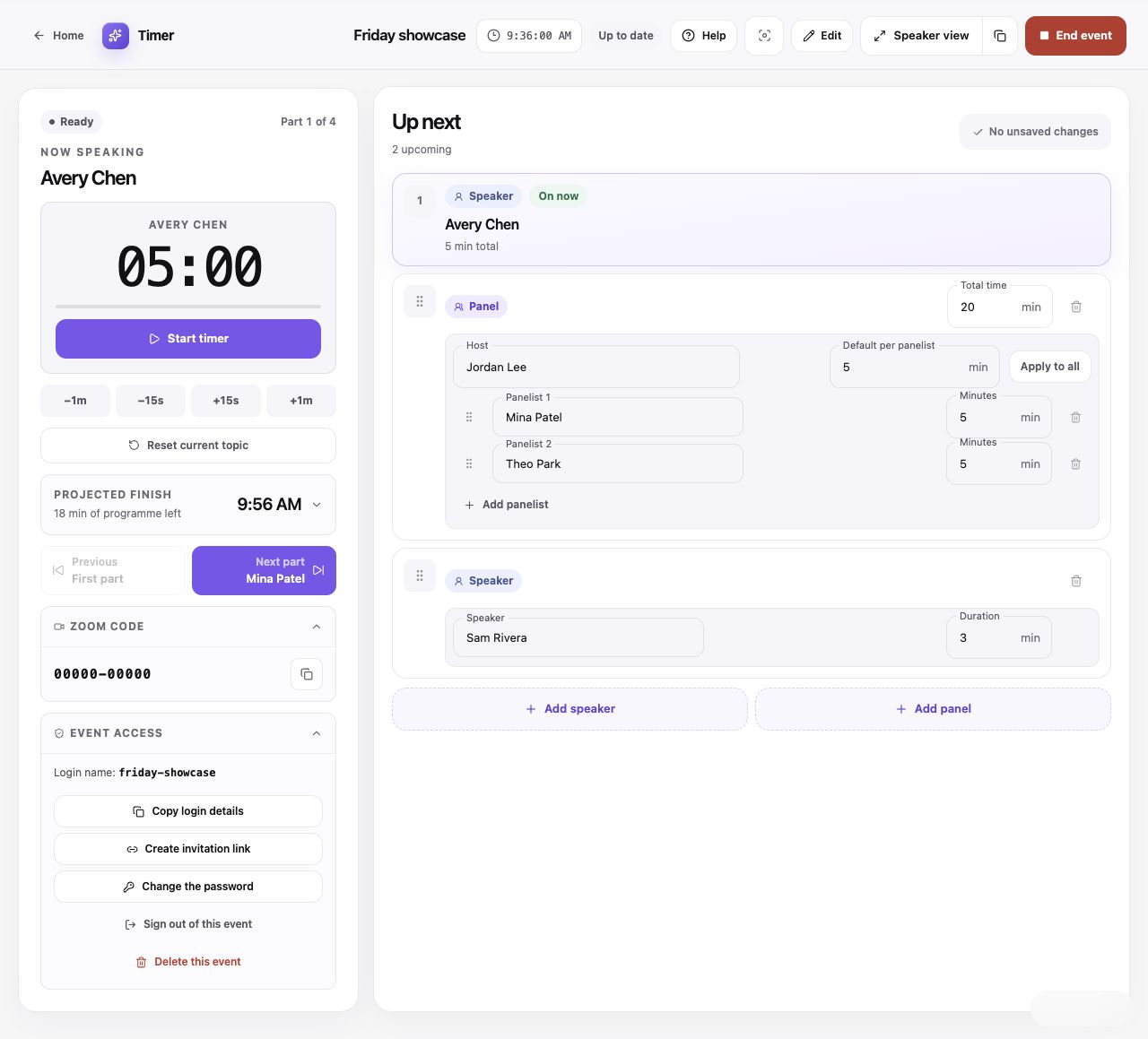
Actual sharing controls with sample data. The all-zero Zoom code is a local example, not a code to use.
Speaker view: Open the anonymous read-only display; the adjacent copy icon copies its link.
Read the whole lesson
For a speaker or display
In the control-room header, Speaker view opens the read-only display in a new tab. The copy icon beside it copies the speaker link. Anyone with this link can watch the timer without a password, but cannot control the event.
For another controller
Expand Event access and select Create invitation link. Copy the link and send it to the colleague who should operate the event. It is reusable for 24 hours and grants control without revealing the password.
Manage invitation links
Revoke stops future uses of the invitation. Creating a new invitation replaces the previous link. Revoking a link does not sign out people who already used it. Changing the event password ends other controller sessions.
Or share login details
In Event access, select Copy login details and enter the current password to prepare a message. It includes controller credentials, so share it only with people who should operate the event.
Set up a speaker display
On each display, select Enable & test sound to allow audio. The sound button and alarm picker affect that display. Use Fullscreen for a presentation display. Copying a link does not enable sound on the receiving device.